How do I Check the Status of My Project?
Step 1
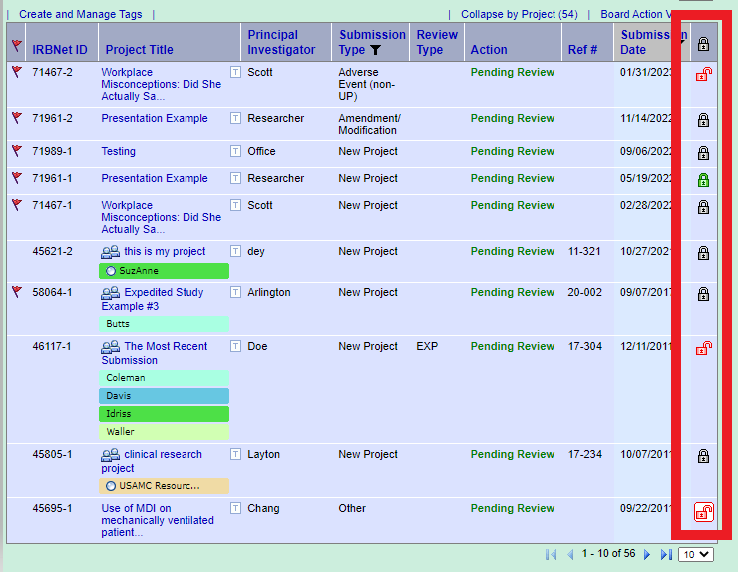
Within the My Projects screen of IRBNet, you can check the status of your project by viewing the last column on the right.
Step 2
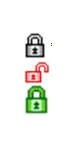
If there is no padlock icon, your package has not yet been submitted and remains a work in progress.
If there is a black padlock icon, your package has been submitted and is pending review.
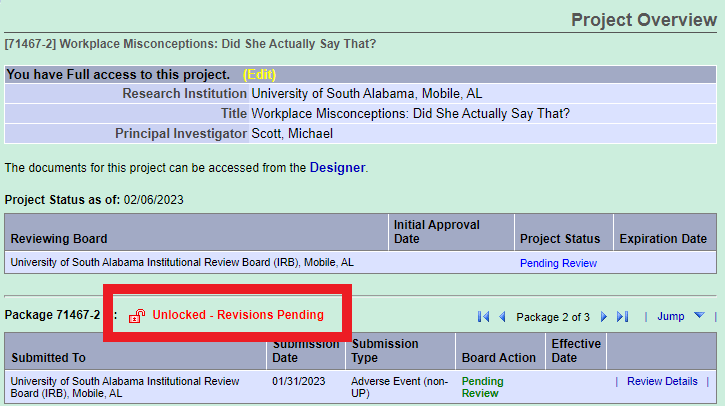
If there is a red padlock icon, your package has been unlocked and revisions are pending.
If there is a green padlock, your package is now locked and pending further review.
A second way to check the status of your project is on the Designer page:

Another way to check the status of your project is within the Project Overview page: